Getting started
Changing your password
Set your own password from My Profile.
Where to find it
Menu My Profile Change Password
Before you start
The password you are using now.
Steps
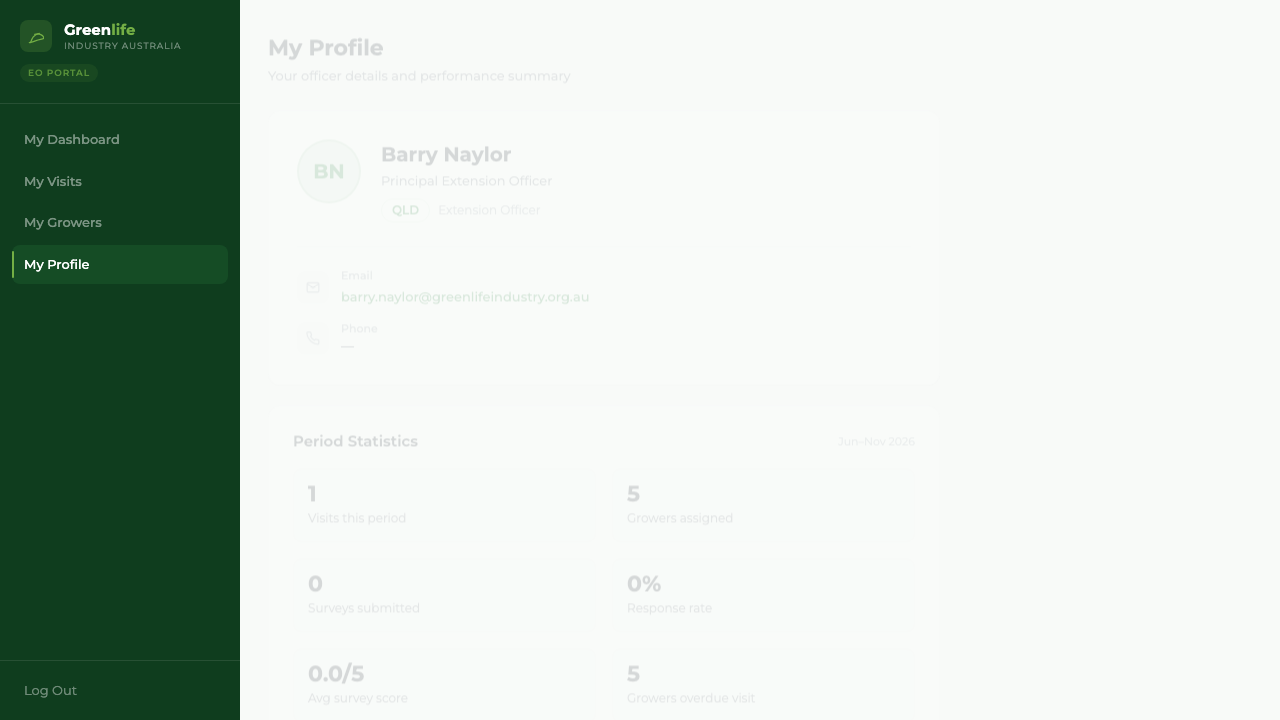
- 1 Select My Profile in the menu.
- 2 Scroll to the Change Password card.
- 3 Type your existing password into Current password.
- 4 Type the new one into New password — at least 8 characters — and again into Confirm new password.
- 5 Select Update Password.
What you'll see
A confirmation reads "Password updated." and you stay on your profile, still signed in. Use the new password next time you sign in.
- "Current password is incorrect." — the existing password was mistyped.
- "New password and confirmation do not match." — the two new boxes differ.
- "Password must be at least 8 characters." — choose something longer.
Good to know
Do this as soon as you have signed in for the first time, so the password your administrator sent you is no longer the one that works. Your name, title, phone and state are read-only here — ask your administrator to change those.
Related topics