Planning visits
Using your calendar
See your month laid out, and create or open a visit straight from a day.
Where to find it
Menu My Visits Upcoming Calendar
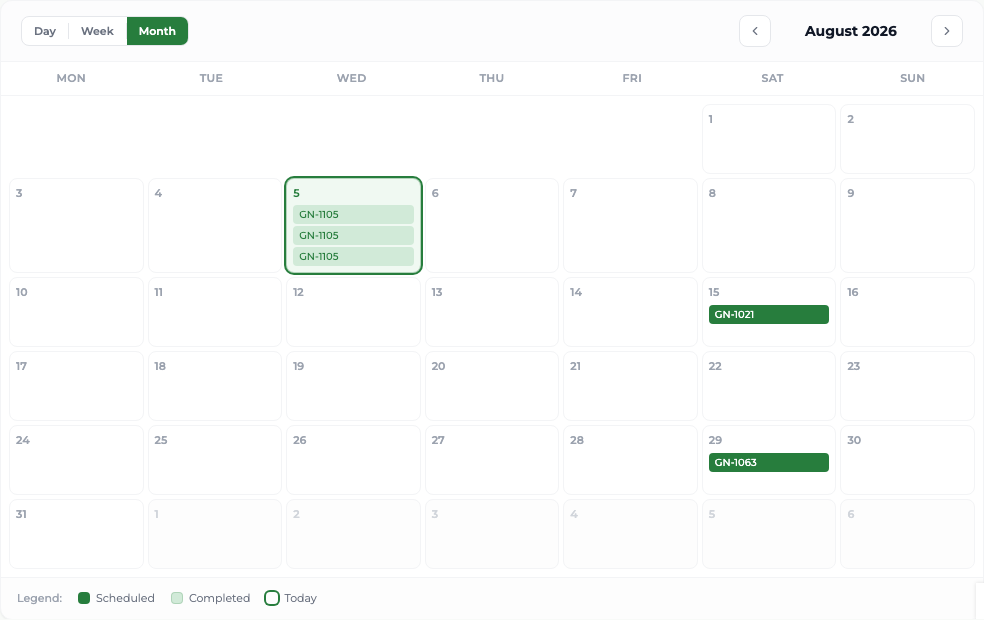
Steps
- 1 Select My Visits in the menu, then the Upcoming tab, then Calendar.
- 2 Choose Day, Week or Month. Weeks run Monday to Sunday.
- 3 Use the arrows either side of the label to move between months; you can look as far ahead or back as you like.
- 4 Select today to log a visit for today.
- 5 Select any future empty day to plan a visit, with that date already filled in.
- 6 Select an existing visit to open its detail.
The calendar shows both what you have planned and what you have already done, and the legend explains which is which. Your planned visits appear solid, completed ones faded, and today is marked.
What you'll see
You can see the shape of your month — whether your visits form a sensible run across a region or zig-zag the state — and act on any day without leaving the calendar.
Good to know
Days already holding a visit, and days in the past, are not selectable for creating something new. Visits carry a date but no time of day, so the Day view is a list rather than an hour-by-hour grid, and you cannot drag a visit to another day — use Edit / Reschedule.