Planning visits
Completing a planned visit
Turn a visit you scheduled into a logged visit, keeping what you planned as a starting point.
Where to find it
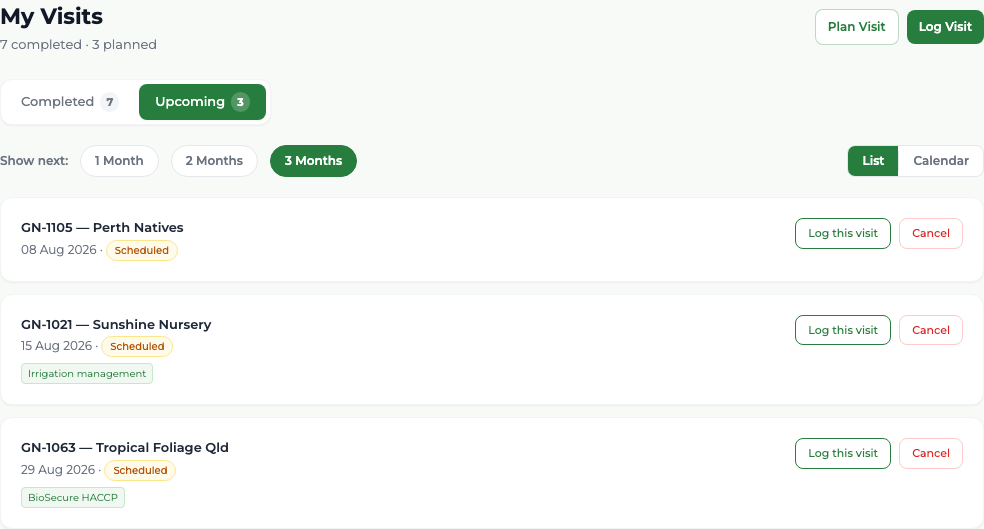
Menu My Visits Upcoming Log this visit
Before you start
Do it on the day you make the visit — completing it records today's date.
Steps
- 1 Select My Visits in the menu, then the Upcoming tab.
- 2 Find the planned visit and select Log this visit. You can also open it on the calendar and select Log this visit there.
- 3 The visit form opens with the grower fixed and your planned topics and notes already filled in.
- 4 Adjust the topics to what you actually delivered, add attendee counts where they are needed, and update the notes.
- 5 Select Save Visit.
What you'll see
The planned visit becomes a completed one — it is the same record moving forward, not a second visit, so your visit count goes up by one and nothing is double-counted. Continue into the grower survey from the confirmation screen if the grower is available.
Good to know
The grower cannot be changed while completing a planned visit; the form says so. Completing re-dates the visit to today, so a visit planned for Tuesday and completed on Thursday is recorded on Thursday.