Planning visits
Rescheduling or cancelling a planned visit
Move a planned visit to another date, or call it off.
Where to find it
Menu My Visits Upcoming
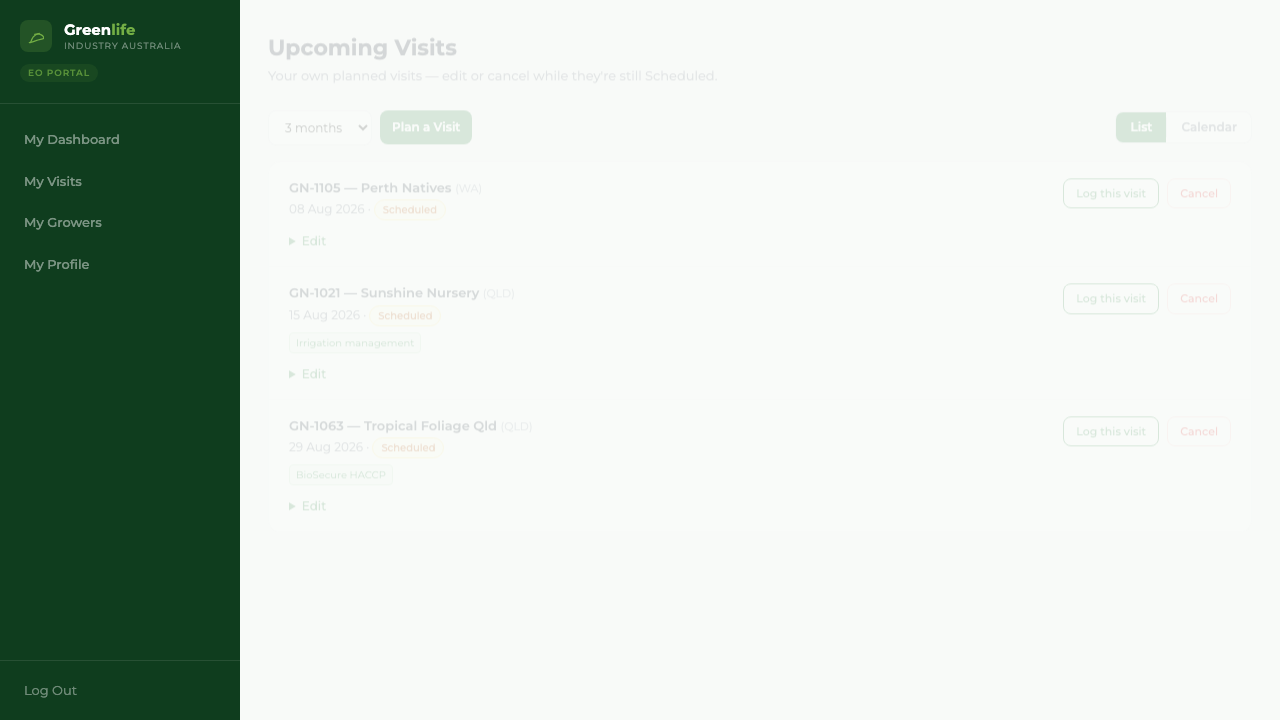
To cancel, you can act from the list. To change a date or the planned topics, you need the Upcoming Visits screen.
Steps
- 1 Select My Visits in the menu, then the Upcoming tab.
- 2 To call a visit off, select Cancel on its card. It happens straight away, with no confirmation prompt, so check you have the right one first.
- 3 To change the date, topics or notes, open the Upcoming Visits screen: add /visits/upcoming to the end of the site address.
- 4 Find the visit and select Edit. Change the Visit Date, the topics or the Notes.
- 5 Select Save changes. A confirmation reads "Visit updated."
What you'll see
A rescheduled visit moves on your calendar and stays Scheduled. A cancelled visit is kept as a record but is no longer planned, and — unlike a completed one — never counts towards the program's visit numbers.
Good to know
The Upcoming Visits screen has no menu link yet, which is why the address is given here. The Edit / Reschedule button on a calendar visit takes you to the same screen. Only planned visits can be edited this way.
Related topics