Logging visits
Logging a completed visit
Record a visit you have just made: the grower, what you delivered, and any notes.
Where to find it
Menu My Dashboard Log a Visit
Before you start
Log it while you are still at the nursery or in the car outside. The date is always today, so a visit logged tomorrow is dated tomorrow.
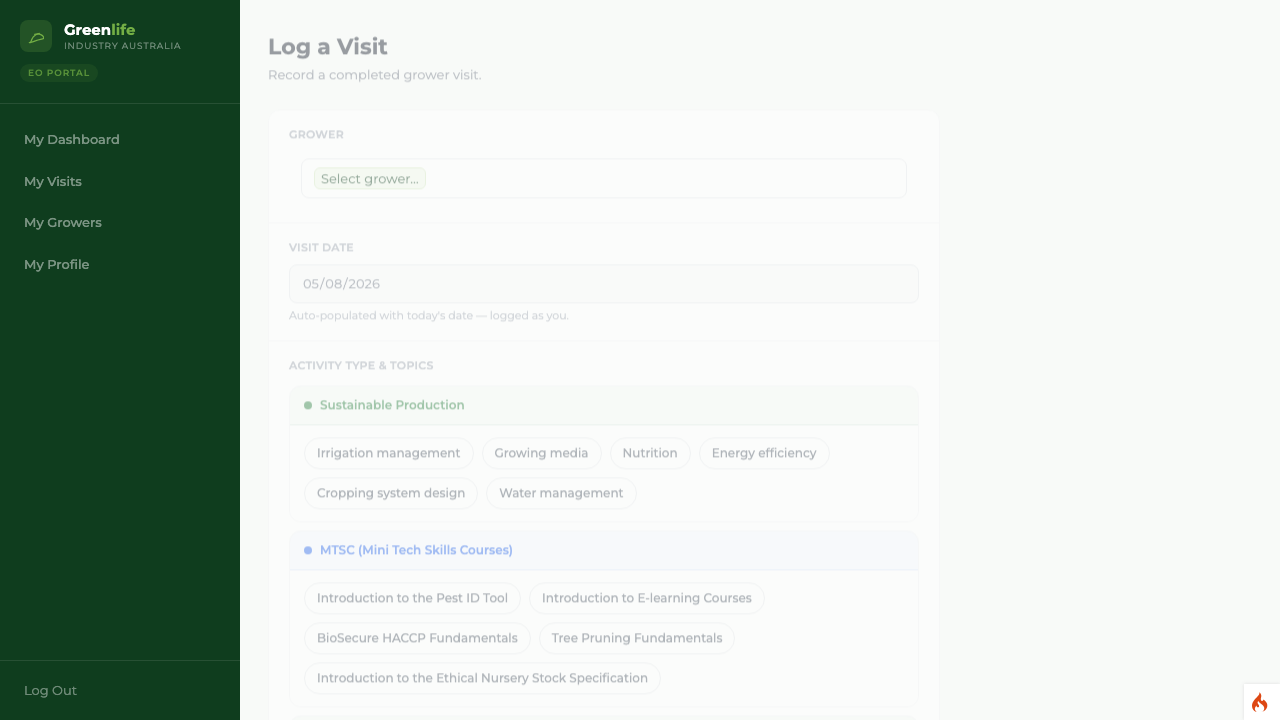
Steps
- 1 Select Log a Visit under Quick Actions on your dashboard. The same form opens from Log Visit on My Visits, from Log Visit on a grower row, and from + Log Visit for This Grower on a grower record.
- 2 Choose the business in Grower. Start typing to narrow the list.
- 3 Leave Visit Date alone. It is filled in with today's date and cannot be changed — the visit is recorded as yours automatically.
- 4 Under Activity Type & Topics, select everything you delivered. See Choosing activities.
- 5 Where a course or workshop needs an attendee count, type it in the box that appears beside it. See Recording attendees.
- 6 Write what was discussed into Visit Notes. Optional, but it is what makes the visit reconstructable later.
- 7 Select Save Visit.
What you'll see
The form is replaced by "Visit logged successfully!" with the grower's name, and offers the next step: Start Grower Survey, or Done (skip survey for now). You never typed your own name or the date, and the visit is already in the program's numbers.
- "Select a grower to log this visit against." — no business was chosen.
- "Select at least one activity topic." — a visit has to record what you did.
- "Attendee count must be a whole number between 1 and 2000." — check the count you typed.
Good to know
The date cannot be backdated, so catching up on Friday for Tuesday's visit records the wrong date. Log each visit on the day. Skipping the survey is fine — the visit still counts.