Getting started
Changing your password
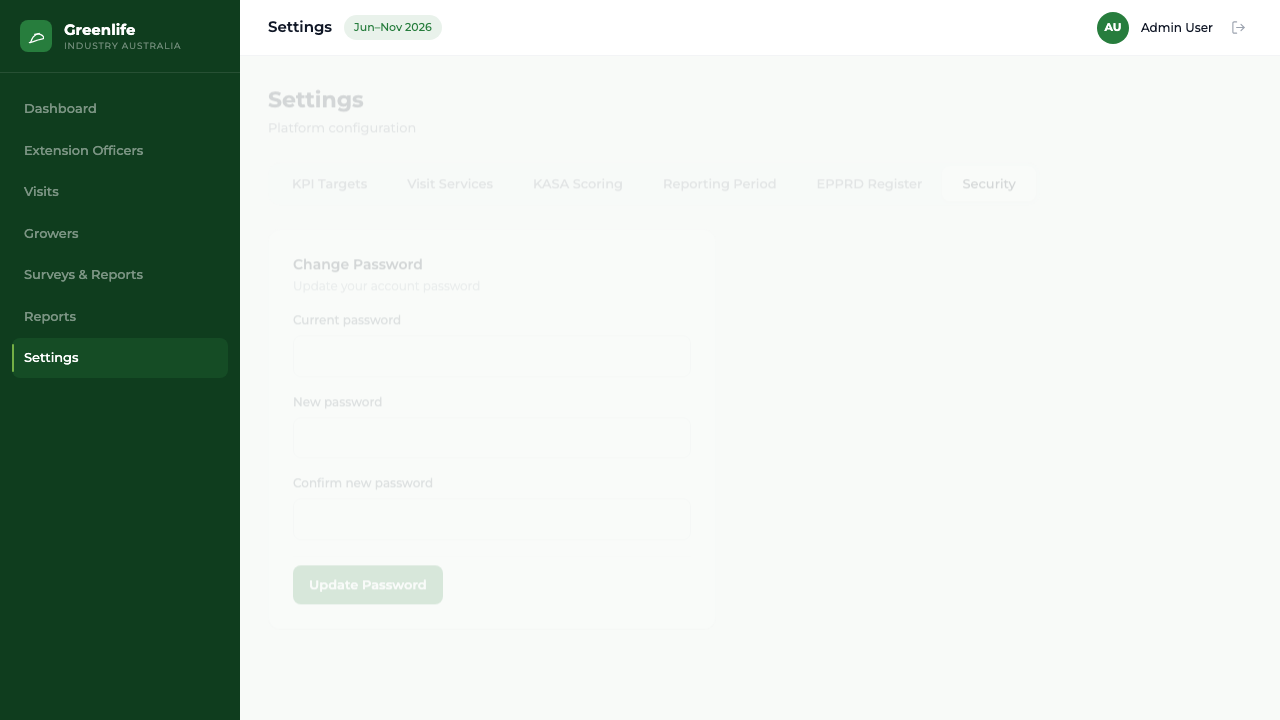
Set a new password for your own account from the Security tab in Settings.
Where to find it
Sidebar Settings Security
Before you start
Your current password.
Steps
- 1 Select Settings in the sidebar. The Security tab opens by default; if you are on another tab, select Security.
- 2 In the Change Password card, type your existing password into Current password.
- 3 Type the new one into New password, then the same again into Confirm new password. It must be at least 8 characters.
- 4 Select Update Password.
What you'll see
A green confirmation reads "Password updated." You stay signed in; the new password applies the next time you sign in.
- "Current password is incorrect." — the existing password was mistyped.
- "New password and confirmation do not match." — the two new-password boxes differ.
- "Password must be at least 8 characters." — choose something longer.
Good to know
This is the only part of your own account you can change. Your name and email address can only be changed by another administrator on the Users screen.
Related topics