Reporting periods and targets
Switching the active reporting period
Make a different six-month window the active one, so every screen re-scopes to it.
Where to find it
Sidebar Settings Reporting Period
Before you start
Know which window you intend to work in. Switching changes what every administrator sees, not just you.
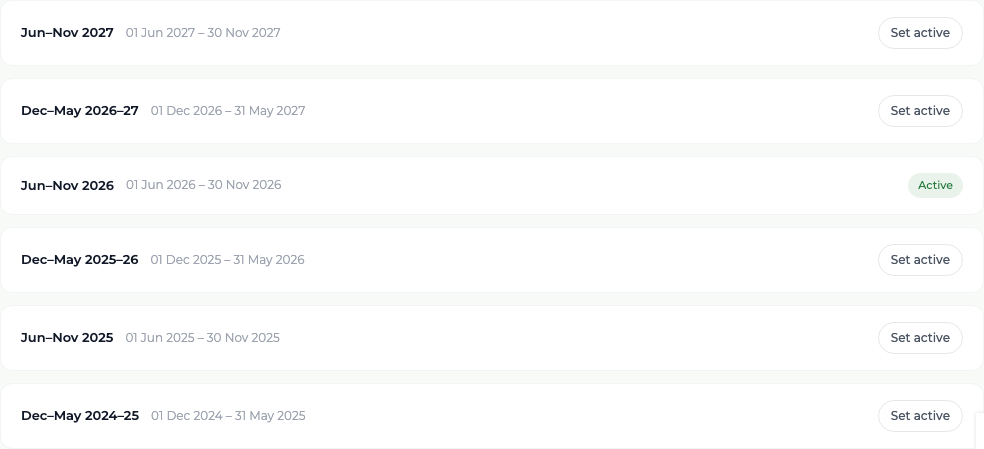
Steps
- 1 Select Settings in the sidebar, then the Reporting Period tab.
- 2 Read the list of windows. The one in use carries an Active badge; the others carry a Set active button.
- 3 Select Set active on the window you want.
- 4 Check the period pill in the top bar now names that window.
What you'll see
Every period figure re-scopes immediately: dashboard tiles, survey gauges, the Extension Activity Log, officer statistics and the Milestone Figures screen all show the newly active window. The numbers should visibly change.
Important
Only one period is active for the whole organisation. If you switch it to check last period's numbers, switch it back when you are done — otherwise officers' dashboards and everyone else's figures stay pointed at the wrong window.
Good to know
You do not have to switch the active period just to read an old period's figures. The Milestone Figures screen has its own period picker that leaves the active period alone.