Extension officers
Reviewing an officer's visits and performance
Open one officer and read their visits, their growers, their survey rate and what they have planned.
Where to find it
Sidebar Extension Officers officer row
Steps
- 1 Select Extension Officers in the sidebar.
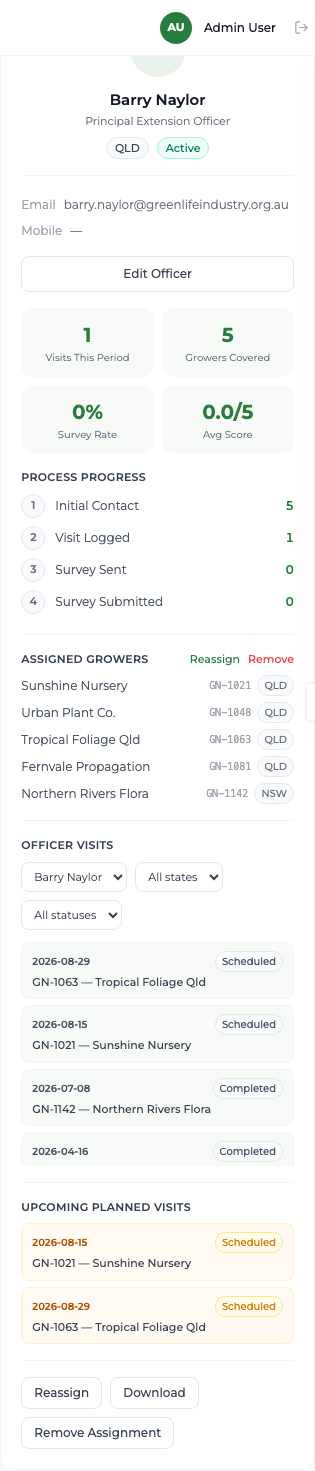
- 2 Select the officer's row. Their detail panel opens beneath the list.
- 3 Read the four figures at the top: Visits This Period, Growers Covered, Survey Rate and Avg Score.
- 4 Read the Process Progress strip, which counts how far their growers have moved through Initial Contact, Visit Logged, Survey Sent and Survey Submitted.
- 5 Scroll to Officer Visits for the individual visits. Narrow them with the state and status filters — Scheduled, In Progress, Completed or Cancelled.
- 6 Check Upcoming Planned Visits to see what they have scheduled, and Assigned Growers for the businesses they are responsible for.
What you'll see
You can see what one officer has done this period, which growers it was done with, how many of those visits produced a survey, and what they intend to do next — without leaving the screen.
Good to know
The figures at the top cover the active reporting period. The "Pending Pre Surveys" card at the top of the Extension Officers screen is a placeholder and always shows a dash — ignore it.