Administration
Managing user accounts
Add administrators, change a name or email, reset a password, or restrict an account.
Where to find it
Add /users to the site address — no menu link yet
Important
This screen has no sidebar link yet. Reach it by typing the site address followed by /users.
Steps
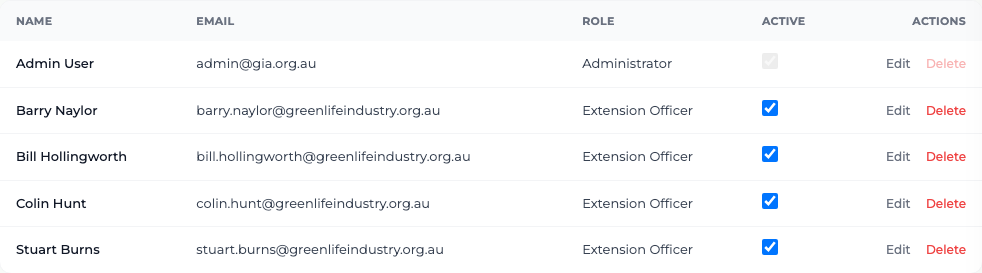
- 1 Open the screen headed "Users". It lists every account with its role and whether it is active.
- 2 Select Add User to create one: Full name, Email address, Password and Role. Select Save.
- 3 Select Edit on a row to change those details. Leaving the password blank keeps the existing one — this is also how you reset a password for someone who is locked out.
- 4 Use the toggle in the Active column to restrict or restore an account, and Delete to remove one.
What you'll see
The account can sign in with the details you set. You cannot restrict or delete your own account — those controls are disabled on your own row, so you cannot lock yourself out.
Good to know
Use Extension Officers rather than this screen to create an officer, because that form also captures their title, state, phone and notes. Use this screen for administrator accounts and for password resets.