Growers
Importing your state grower lists
Load an existing spreadsheet of businesses, check the preview, then commit it.
Where to find it
Sidebar Growers Bulk import
Before you start
Your state list to hand. You will download a template and copy your data into its columns.
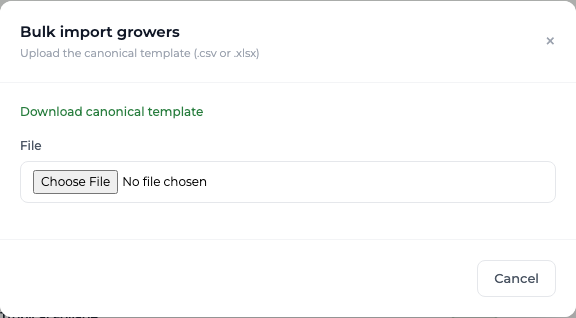
Steps
- 1 Select Growers in the sidebar, then Bulk import. A window opens headed "Bulk import growers".
- 2 Select Download canonical template and open the file. It is a single header row of the columns the platform expects.
- 3 Copy your data under those headings, keeping the column order. Only Business Name and State have to be filled in; everything else is optional.
- 4 Save the file as a .csv or .xlsx and select it in the upload box.
- 5 Read the preview carefully. Every row is badged add, update or skip, and any row whose Assigned EO could not be matched is flagged "EO not found".
- 6 Fix anything you do not like, re-upload, and when the preview is right select Confirm import.
- add
- This business is new and will be created.
- update
- This business already exists and its details will be updated from your file.
- skip
- This row will not be imported. The reason is shown beside it, prefixed with the line number in your file.
What you'll see
The preview tells you exactly what will happen before you commit anything, and bad rows are named with their line number rather than silently dropped. Importing the same file twice does not create duplicates — the second run reports updates, not additions.
Good to know
If the file itself cannot be read, you get an error instead of a preview and the Confirm button stays hidden — nothing is ever imported half-way. The Assigned EO column has to match an officer already in the platform, so add your officers first.