Visits
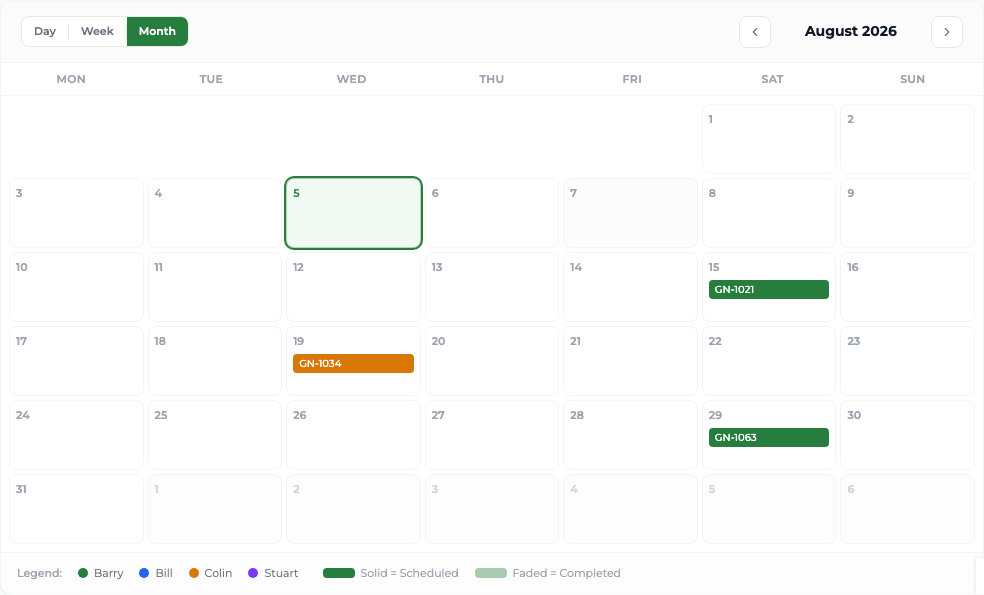
Using the visits calendar
See visits by day, week or month across officers, and open one to read its detail.
Where to find it
Sidebar Visits Calendar
Steps
- 1 Select Visits in the sidebar, then Calendar.
- 2 Choose Day, Week or Month.
- 3 Use the arrows either side of the label to move backwards and forwards; there is no limit on how far you can look.
- 4 Use the officer dropdown to show one officer instead of all.
- 5 Select any visit to open its detail — the grower, the date, the officer, the status, the topics and the notes.
- 6 Select Close to dismiss it.
What you'll see
You can see how a month is covered, whose visits fall where, and read the detail of any one of them without leaving the calendar.
Good to know
Weeks run Monday to Sunday. Visits carry a date but no time of day, so the Day view is a list rather than an hour-by-hour grid. Administrators cannot create or move a visit from the calendar — only officers can, in their own portal.
Related topics