Visits
Finding and filtering visits
Break the visit total down by officer, state or month, and drill to individual records.
Where to find it
Sidebar Visits List
Steps
- 1 Select Visits in the sidebar. It opens on the List view.
- 2 Read the four figures at the top: Total Visits, Completed, Scheduled and Surveys Submitted.
- 3 Filter by status — All, Completed or Scheduled.
- 4 Type into "Search grower or officer" to find a particular one.
- 5 Use the officer, state and month dropdowns to break the total down. The month list covers the months in the active period.
- 6 Select Clear to drop all filters at once.
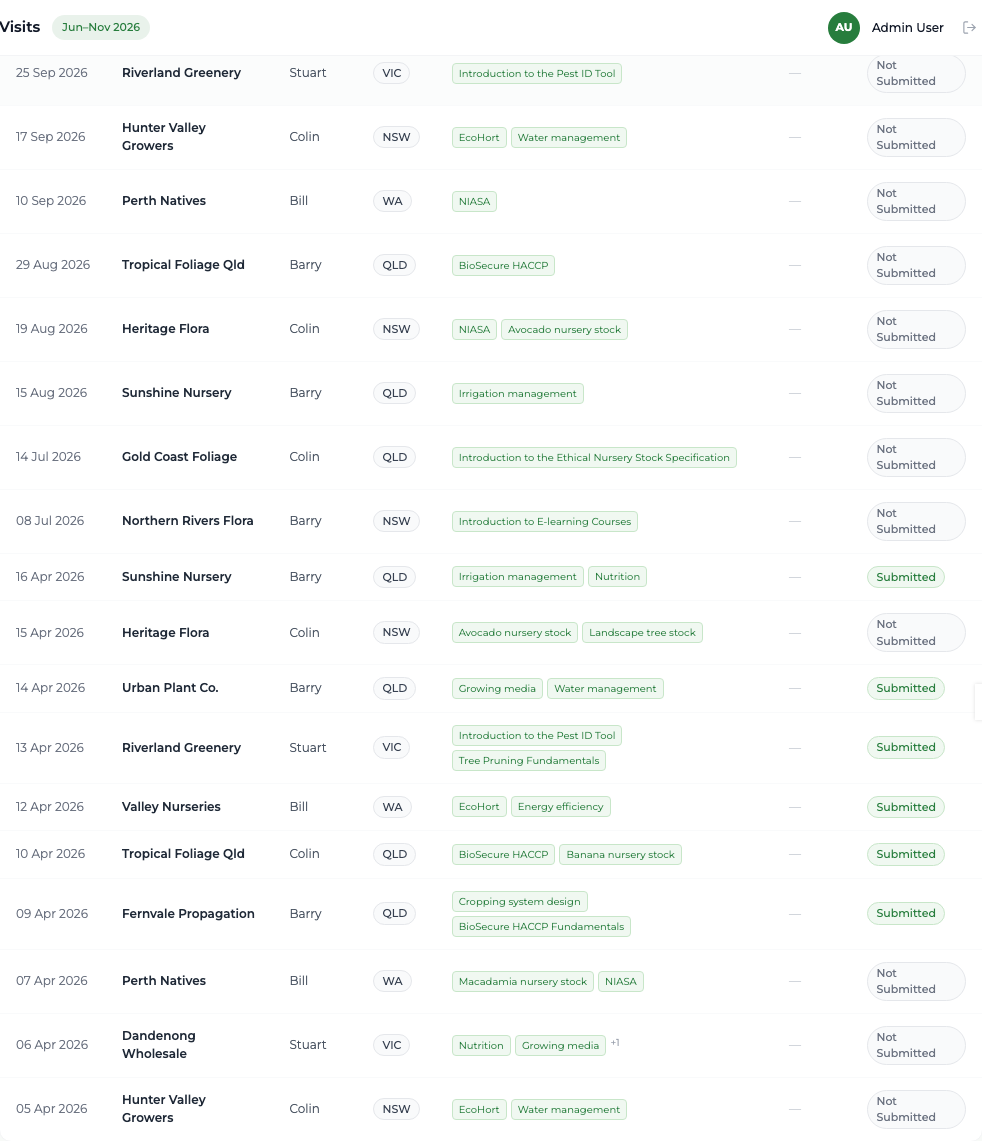
The table shows the date, grower, officer, state, the topics delivered and whether a survey was submitted.
What you'll see
Any headline visit figure can be decomposed here — by officer, by state, by month — down to the individual records that make it up, so you can always answer a funder's question about where a number came from.
Good to know
This screen is read-only for administrators: there is no way to add, edit, reschedule or cancel a visit from here. Visits are created and corrected by the officer who made them. The Images column is a placeholder and always shows a dash — the platform does not store visit photos.