Reporting periods and targets
Setting the targets for a period
Give each of the ten metrics a target for the active period so the dashboard can show progress.
Where to find it
Sidebar Settings KPI Targets
Before you start
The agreed targets for the period. Targets belong to the active period, so check the period pill first.
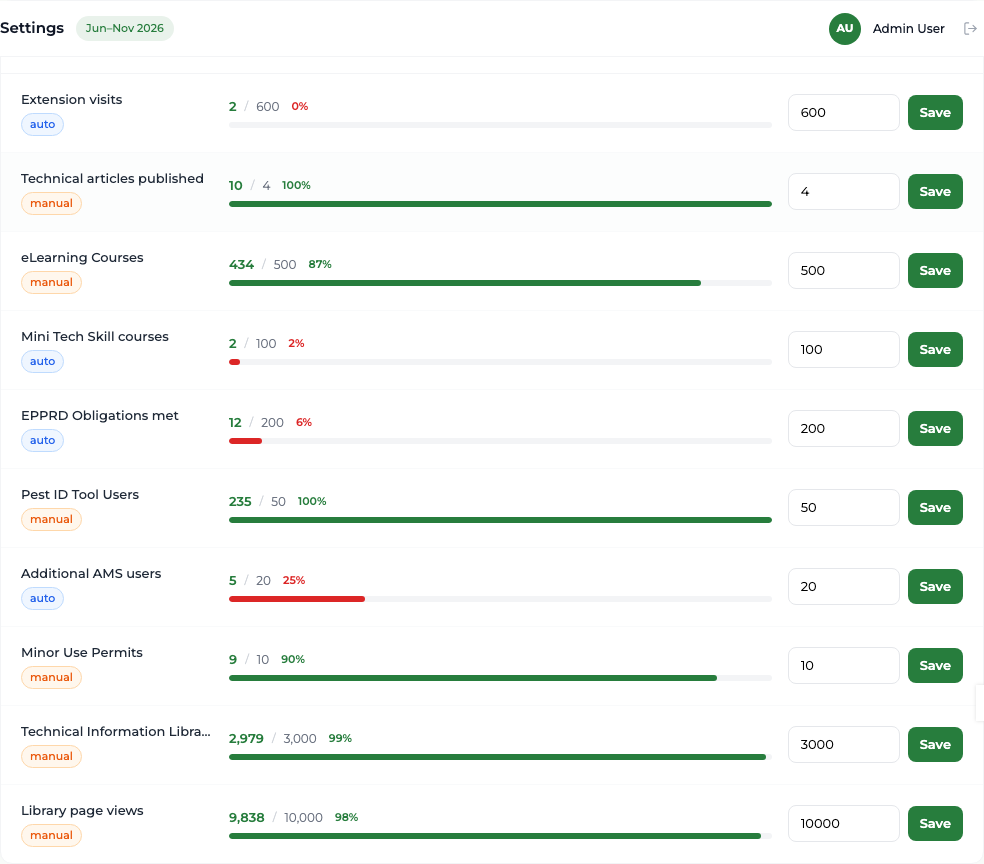
Steps
- 1 Select Settings in the sidebar, then the KPI Targets tab. The panel is headed "KPI Targets" followed by the active period.
- 2 Find the metric you want. Each row shows its current value, its target, how far through it is, and whether it is an auto or a manual metric.
- 3 Type the new target into the box on that row.
- 4 Select Save on that same row. Each row saves independently.
What you'll see
The row redraws with the new target and recalculated percentage, and the matching tile on the Dashboard shows "Target: " and the new number.
Good to know
Targets set here are project-level and apply to the active period only. Switching to another period shows that period's own targets. To give a single officer their own target, use the gear on the dashboard tile instead.