Reporting periods and targets
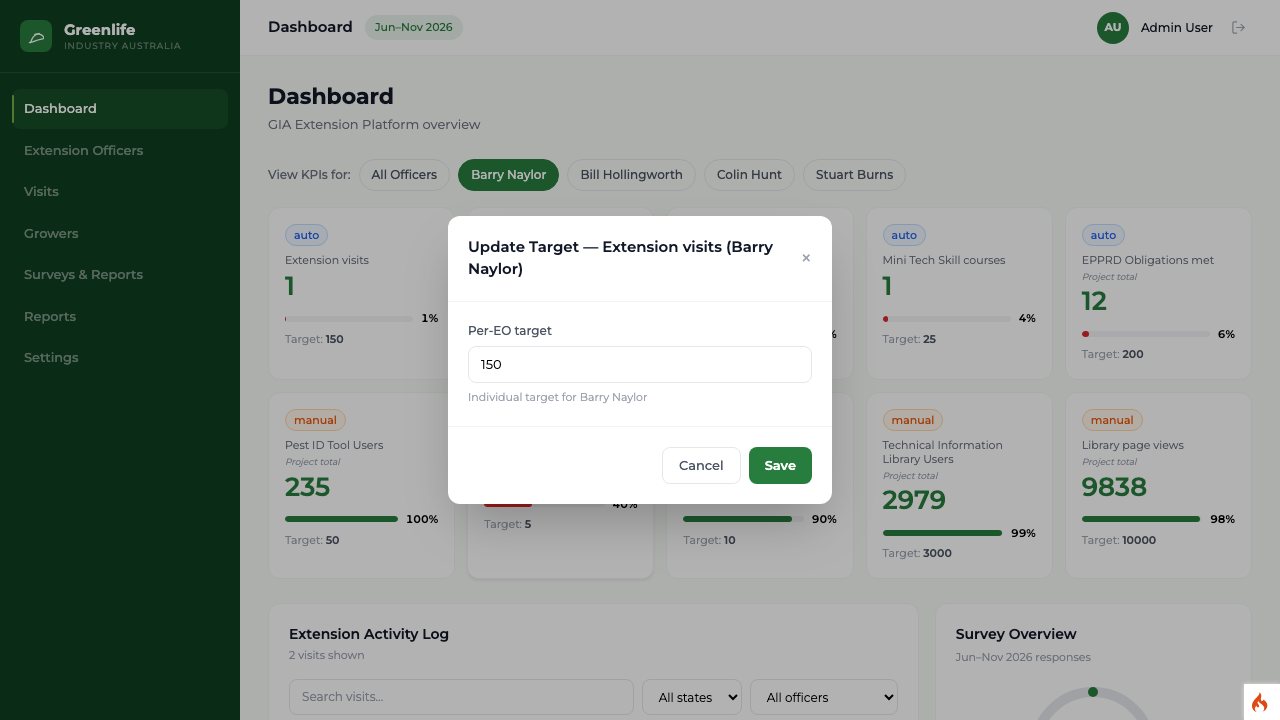
Setting a target for one officer
Give an individual officer their own target for visits, Mini Tech Skills courses or AMS users.
Where to find it
Sidebar Dashboard View KPIs for
Steps
- 1 Open the Dashboard.
- 2 In the "View KPIs for:" row above the tiles, select the officer's name. The tiles re-scope to that officer.
- 3 Hover over the tile you want and select the gear icon in its corner.
- 4 The box is labelled Per-EO target. Type the officer's target and select Save.
What you'll see
That officer's tile now measures their own figure against their own target. Selecting All Officers again returns the tile to the project-level target.
Good to know
Only three metrics support a per-officer target: Extension visits, Mini Tech Skill courses and Additional AMS users. On any other tile the box stays labelled Project target, because the metric is only meaningful for the program as a whole.