The dashboard
Entering a value for a manual metric
Type in the figures the platform cannot count itself, such as technical articles or library page views.
Where to find it
Sidebar Dashboard tile gear icon
Before you start
The figure, and the register or report you took it from — you may be asked later where it came from.
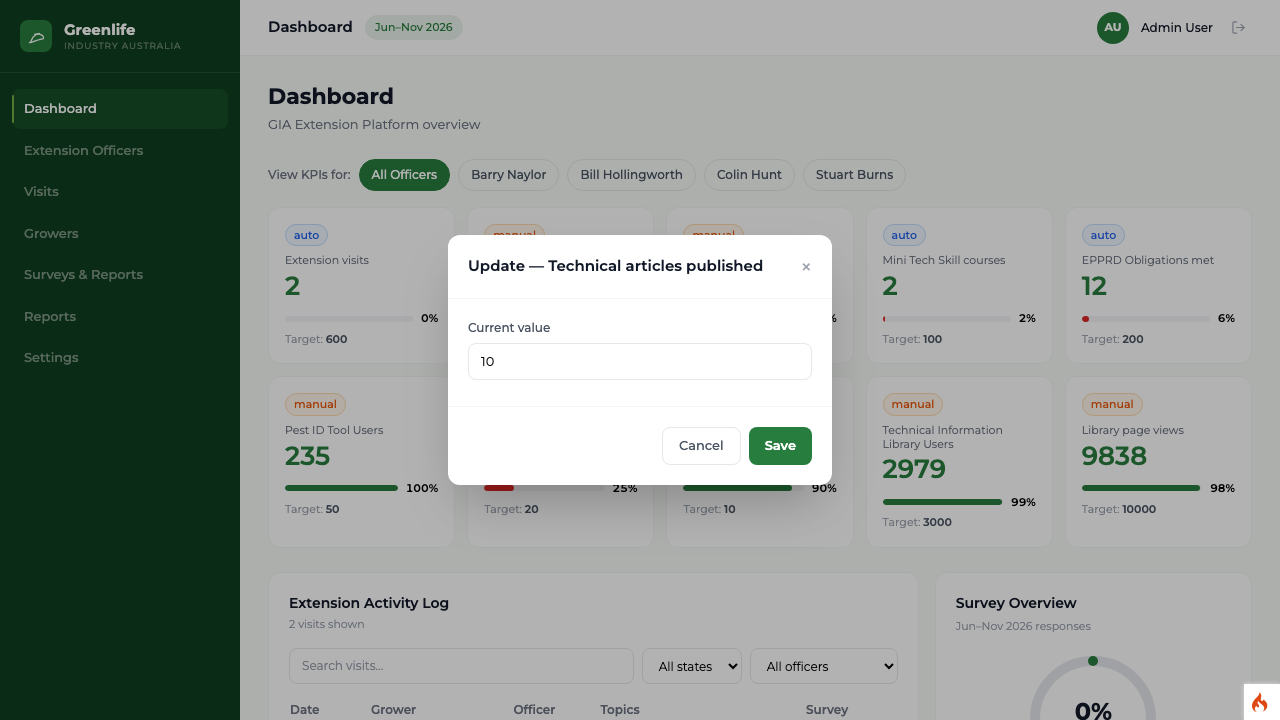
Steps
- 1 Open the Dashboard and check the period pill shows the period the figure belongs to.
- 2 Find the tile badged manual — for example Technical articles published or Technical Information Library page views.
- 3 Hover over the tile and select the gear icon.
- 4 The box is labelled Current value. Type the figure and select Save.
What you'll see
The tile shows the value you entered, with its progress bar and percentage recalculated against the target, and the same figure appears in the "This period" column on the Milestone Figures screen.
Good to know
The value you type is stored against the active period, so enter it while the right period is active. On an auto tile the same gear edits the target instead — the platform will not let you overwrite a figure it counts itself.