Getting started
Finding your way around the admin portal
The sidebar menu, the top bar, and what each of the seven screens is for.
Where to find it
Sidebar any screen
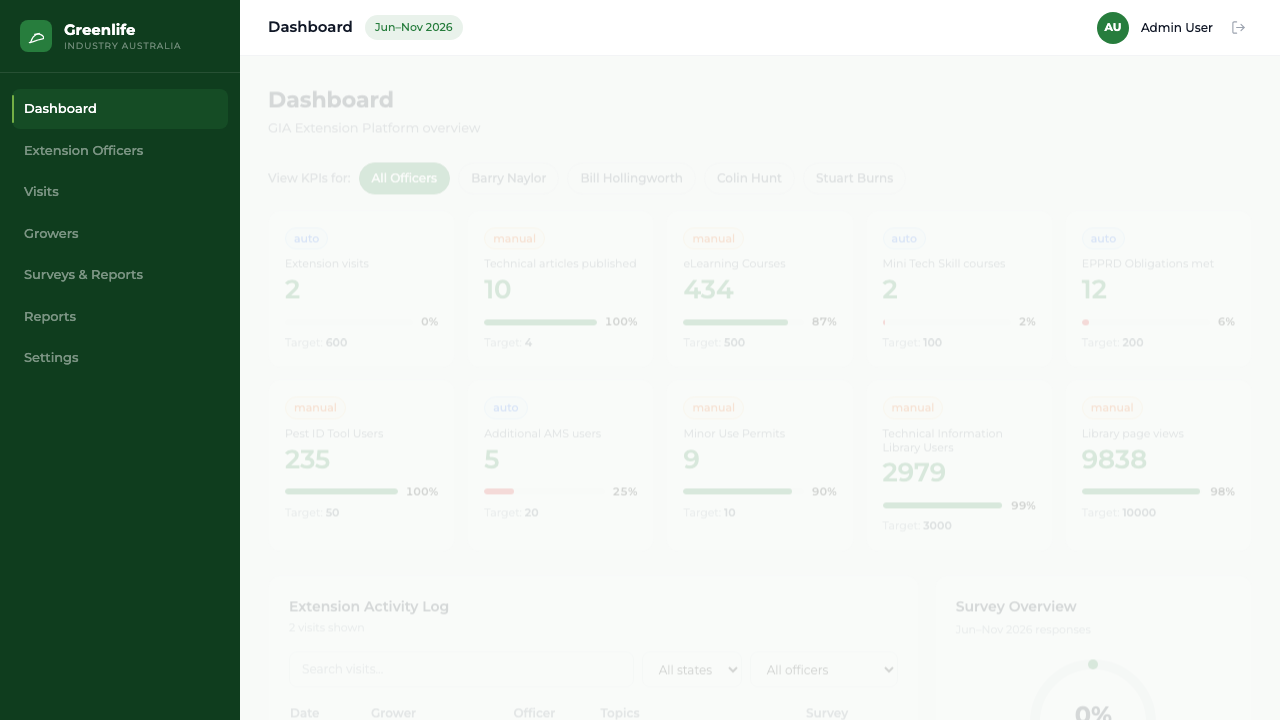
Everything is reached from the dark sidebar on the left. It holds seven entries, always in this order:
- Dashboard
- The ten headline figures for the active period, the Extension Activity Log, a survey summary, and a month-at-a-glance visit calendar.
- Extension Officers
- Add and edit officers, restrict access, review an officer's visits and performance, and move growers between officers.
- Visits
- Every visit by every officer, as a filterable list or a calendar. Read-only.
- Growers
- The full grower register: add, edit, import in bulk, deactivate, and export the growers who consented to contact.
- Surveys & Reports
- Survey results: the Knowledge, Skills and Attitudes gauges, submission rate, per-question scores, state coverage and consent.
- Reports
- The Milestone Figures screen — the numbers you transcribe into the Hort Innovation template, plus exports.
- Settings
- Six tabs: KPI Targets, Visit Services, KASA Scoring, Reporting Period, EPPRD Register and Security.
The bar across the top shows the name of the screen you are on, the reporting period currently active, your initials and name, and the sign-out icon.
What you'll see
The active screen is highlighted in the sidebar, and the period pill in the top bar tells you at a glance which six-month window every figure on screen belongs to.
Good to know
The admin sidebar is designed for a laptop or desktop screen. On a narrow phone screen it is hidden and there is no replacement menu, so use a computer for administrator work. The officer portal is the one built for phones.
Related topics