The dashboard
Checking the month at a glance
Use the dashboard calendar widget to see the shape of the current month across all officers.
Where to find it
Sidebar Dashboard Visit Calendar
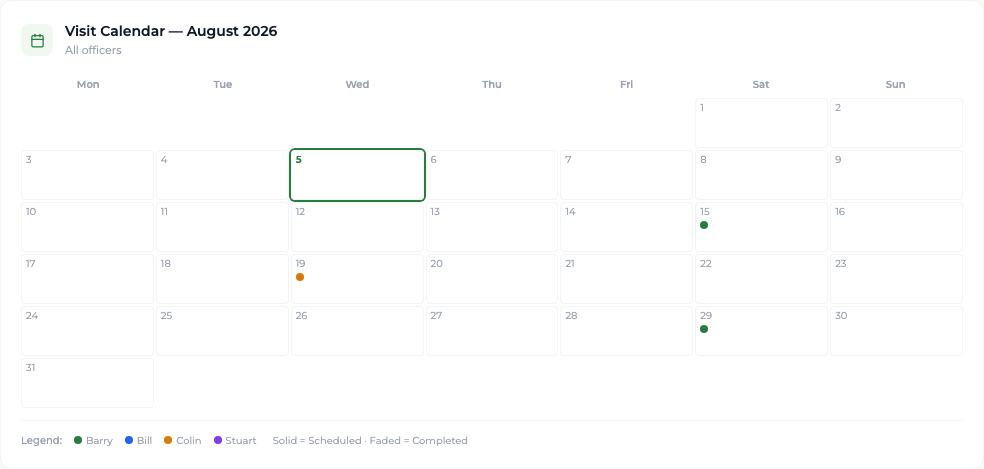
The Visit Calendar panel on the Dashboard shows the current month of the active period with one coloured dot per visit per day. Each officer has their own colour, listed in the legend beneath.
Steps
- 1 Open the Dashboard and find the Visit Calendar panel, headed with the month and year.
- 2 Read the dots: a solid dot is a scheduled visit, a faded dot is a completed one, as the legend explains.
- 3 Use the officer colours in the legend to see who is working where in the month.
What you'll see
You can see at a glance whether the month is evenly covered or clustered, and which officers are contributing.
Good to know
This panel is a summary only — the dots are not clickable. To open individual visits, or to move to another month, use the calendar on the Visits screen.
Related topics